Thursday, April 15, 2010

Include a value from one cell within text of another cell.

Regarding the question when user enter data in cell B4, the cell B5 will show text such as " X is not a valid entry. Please enter the correct pair number." for entry of 25~150 (X is the enter number). You can use the formula below at cell B5:


You can also use Data Validation at Data, Data Validation by setting Setting below.


You can also set message box to display by setting Error Alert below.

When the number 25 to 150 is enter, a message box and text is displayed as below.

Conditional Formatting Date Range

Regarding the question how to use Conditional Formatting to look at the range of dates in
B3:B13 and highlight all the cells that contain a date in the mini calendar. You can use sumproduct formula in your conditional formatting. You can see the picture below, when you use sumproduct for cell Q7 compare with range B3:B13, it will equal to 1 because it is in the range.


Therefore, you can use the formula to conditional formatting's formula by setting it to red color if the formula more than o or equal 1.

Thursday, April 1, 2010

Check box help in Word

Regarding the question of a faster way to do check/uncheck these boxes, I propose create a command button to perform you required action. To do this, you need to create a simple program to do this.

Follow the steps below:
1) Insert Checkbox (from Forms toolbar) and Commandbutton (from Control Toolbox). (For Word 2007, click Customize Quick Access Toolbar, More Command, Choose Command From: All Command, add Check box, Command button).
2) Select the Commandbutton and right-click to select View Code.

3) The Microsoft Visual Basic will open for you to write coding. Write this statement to enable the checkbox check after press command button.

ActiveDocument.FormFields("Check1").CheckBox.Value=True

4) Double-click the checkbox to ensure the check box name is tally.

5) Select the commandbutton and right-click to select CommandButton Object, Edit to change the commandbutton caption to "Check".

6) Click Exit Design Mode. Now you can click the "Check" button to check the checkbox. (For Word 2007, click Customize Quick Access Toolbar, More Command, Choose Command From: All Command, add Design Mode).

7) Now, when you click the button, the check box will check. You can also write other program to perform action required by you.

Thursday, March 25, 2010

Run A Macro By Opening A File

Eric,

Referring to your question on how to run a macro when you open a file with the condition if current time is between 9 am and 10 am, otherwise, don't run this macro.

I had create a Open event at the ThisWorkbook objects. You can use the If statement below, and change Msgbox below to Run to run your macro.

Wednesday, March 24, 2010

Linking Data From Form To Database

Many of us need to updata details of documents into a database/master list. Many of us always forget to update the database. It is good if we can update the database automatically whenever the changes of documents.

The example below show you if you can smart use of the template wizard function, you can updating database/master list automatically whenever the change of documents.


Now you can see the real life examples how other people work smart by smart use of Microsoft Office (Microsoft Excel, Word and PowerPoint) in a series of Microsoft Office (Microsoft Excel, Word and PowerPoint) book. You can view the coverage and special features of the books at Youtube and get the books in ebay.

Tuesday, March 23, 2010

Create Drop-down List From Other Workbook

Juan,

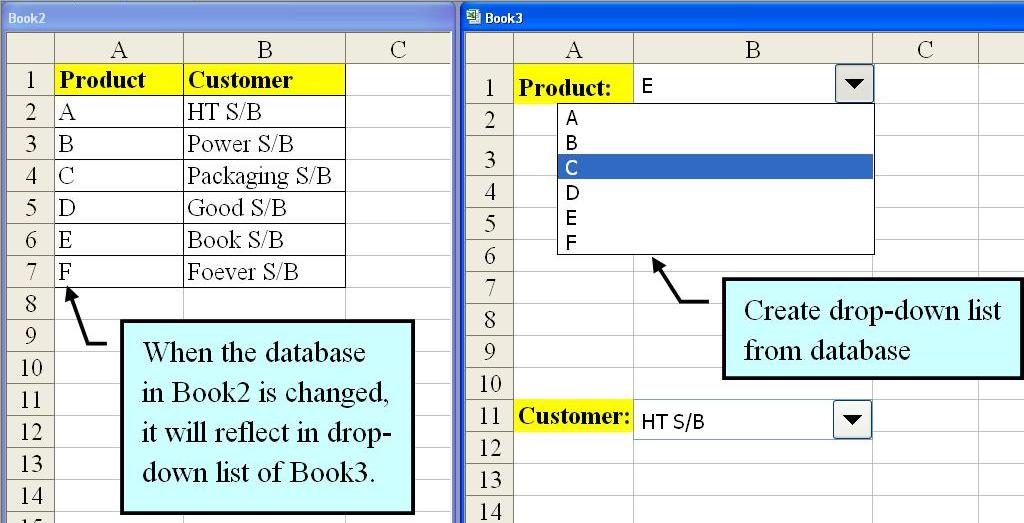
Regarding your question of creating drop-down list at other workbooks by using the database from different workbook. When the database is revised, the drop-list of all the related workbooks will change accordingly. I had show the ways of doing so.

1. Create drop-down list where the data get from other workbook.

2. Show the Form toolbar.

3. Show Format Control dialog box.
4. Setting the Input range from other workbook.
5. The drop-list down is created after click OK.


Sunday, March 21, 2010

Retrieve Data From Excel To Prepare Other Document

Most of us like to prepare database in Microsoft Excel. If we can smart use of the database, we can use the information from the database in Excel to prepare other documents for example use the company details to prepare envelope as the example below.

After linking the database from Excel to Word in envelope, simply by clicking the arrow, you can prepare envelope of other company easily.

You can also use the same database to prepare other document like letter/quotation by adding in other additional columns.


Now you can see the real life examples how other people work smart by smart use of Microsoft Office (Microsoft Excel, Word and PowerPoint) in a series of Microsoft Office (Microsoft Excel, Word and PowerPoint) book. You can view the coverage and special features of the books at Youtube and get the books in ebay.